Publication workflow
Starsky is a social media publishing workflow for pictures, with a focus on simplicity and ease of use. It allows you to quickly generate good-looking images and then let you publish them to your various social media accounts.
It's easy to publish, share and store your pictures with the Starsky app. Simply choose from a wide range of templates, add one or more photos, write some text and press ' Publish'. There will be a generated image to included in your social media post.
Publish photos with watermarks and prerendered html. It is possible to publish photos with watermarks and prerendered html. This is useful for example to publish photos to a website. The photos are published with watermarks and the html is prerendered. The html is prerendered to make it possible to publish the html to a blog or static website. The html is prerendered with the razor files. The title, tags and description of the image can be autofilled.
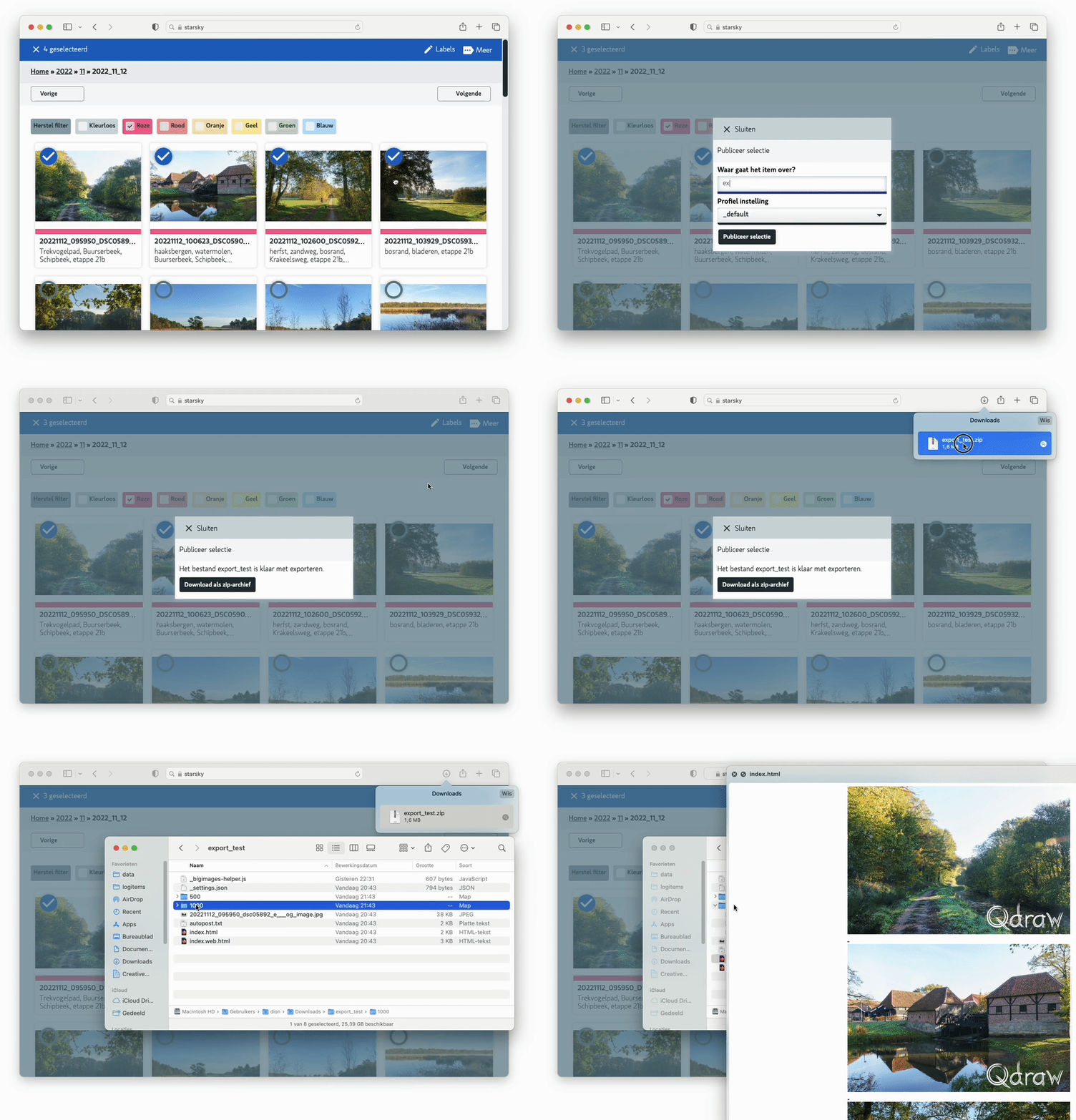 Screenshot from: https://demo.qdraw.nl and
 search?t=wolken page
Settings
Template and logo are configurable in the settings.
At the moment this is editable in the appsettings.json
For advanced configuration check
the starskywebhtmlcli config
page.
Publish profiles and optimizers
The publish workflow is driven by publishProfiles.
Each profile contains a list of actions (for example: render html, create resized jpeg files, move
source files, and publish manifest/content files).
How it works
- You select a publish profile (for example
_default,no_logo_2000px, orno_logo_1000px). - Starsky runs every item in that profile in order.
- Each item uses its own
ContentTypesettings likeSourceMaxWidth,OverlayMaxWidth,Template,Folder,Append, andCopy. - If image optimization is enabled, the optimizer runs for matching image formats after image generation.
New: publishProfilesDefaults and optimizers
The new publishProfilesDefaults section lets you define default optimizer behavior once, and then
enable/override it per publish step.
"publishProfilesDefaults": {
	"profileFeatures": {
		"optimization": {
			"enabled": true
		}
	},
	"optimizers": [
		{
			"imageFormats": [
				"jpg"
			],
			"id": "mozjpeg",
			"enabled": false,
			"options": {
				"quality": 80
			}
		}
	]
}
What you can configure
profileFeatures.optimization.enabled: global switch for optimization support in publish profiles.optimizers[].id: optimizer engine, for examplemozjpeg.optimizers[].imageFormats: which file types this optimizer applies to, for examplejpg.optimizers[].enabled: default on/off state.optimizers[].options: optimizer-specific settings, such asquality.
You can also set optimizers inside a specific publishProfiles item.
That item-level configuration is used when you want explicit behavior for that step (for example
enabling mozjpeg for a jpeg output profile while keeping defaults reusable).
Example profile usage
In this setup, html pages are rendered, multiple jpeg variants are created, source files are moved,
manifest/content is added, and jpeg outputs use mozjpeg optimization with quality 80.
"publishProfiles": {
	"_default": [
		{
			"ContentType": "html",
			"SourceMaxWidth": 0,
			"OverlayMaxWidth": 0,
			"OverlayFullPath": "",
			"Path": "index.html",
			"Template": "Index.cshtml",
			"Prepend": "",
			"Copy": "true"
		},
		{
			"ContentType": "html",
			"SourceMaxWidth": 0,
			"OverlayMaxWidth": 0,
			"OverlayFullPath": "",
			"Path": "index.web.html",
			"Template": "Index.cshtml",
			"Prepend": "https://media.qdraw.nl/log/{name}",
			"Copy": "true"
		},
		{
			"ContentType": "html",
			"SourceMaxWidth": 0,
			"OverlayMaxWidth": 0,
			"OverlayFullPath": "",
			"Path": "autopost.txt",
			"Template": "Autopost.cshtml",
			"Prepend": "https://media.qdraw.nl/log/{name}",
			"Copy": "true"
		},
		{
			"ContentType": "jpeg",
			"SourceMaxWidth": 1000,
			"OverlayMaxWidth": 380,
			"Path": "{AssemblyDirectory}/WebHtmlPublish/EmbeddedViews/qdrawlarge.png",
			"Folder": "1000",
			"Append": "_kl1k",
			"Copy": "true",
			"optimizers": [
				{
					"imageFormats": [
						"jpg"
					],
					"id": "mozjpeg",
					"enabled": true,
					"options": {
						"quality": 80
					}
				}
			]
		},
		{
			"ContentType": "jpeg",
			"SourceMaxWidth": 500,
			"OverlayMaxWidth": 200,
			"Path": "{AssemblyDirectory}/WebHtmlPublish/EmbeddedViews/qdrawsmall.png",
			"Folder": "500",
			"Append": "_kl",
			"Copy": "true",
			"MetaData": "false",
			"optimizers": [
				{
					"imageFormats": [
						"jpg"
					],
					"id": "mozjpeg",
					"enabled": true,
					"options": {
						"quality": 80
					}
				}
			]
		},
		{
			"ContentType": "moveSourceFiles",
			"Folder": "origineel",
			"Copy": "false"
		},
		{
			"ContentType": "publishContent",
			"Folder": "",
			"Copy": "true"
		},
		{
			"ContentType": "publishManifest",
			"Folder": "",
			"Copy": "true"
		},
		{
			"ContentType": "onlyFirstJpeg",
			"SourceMaxWidth": 213,
			"Folder": "",
			"Append": "___og_image",
			"Copy": "true",
			"MetaData": "false",
			"optimizers": [
				{
					"imageFormats": [
						"jpg"
					],
					"id": "mozjpeg",
					"enabled": true,
					"options": {
						"quality": 80
					}
				}
			]
		}
	],
	"no_logo_2000px": [
		{
			"ContentType": "jpeg",
			"SourceMaxWidth": 2000,
			"OverlayMaxWidth": 0,
			"Folder": "",
			"Append": "_kl2k",
			"Copy": "true",
			"optimizers": [
				{
					"imageFormats": [
						"jpg"
					],
					"id": "mozjpeg",
					"enabled": true,
					"options": {
						"quality": 80
					}
				}
			]
		}
	],
	"no_logo_1000px": [
		{
			"ContentType": "jpeg",
			"SourceMaxWidth": 1000,
			"OverlayMaxWidth": 0,
			"Folder": "",
			"Append": "_kl1k",
			"Copy": "true",
			"optimizers": [
				{
					"imageFormats": [
						"jpg"
					],
					"id": "mozjpeg",
					"enabled": true,
					"options": {
						"quality": 80
					}
				}
			]
		}
	]
}
Tip: keep optimizer defaults in publishProfilesDefaults and only override per profile item when
needed.