Super compatible with other tools
Starsky uses IPTC and XMP metadata to read and write. That are two standards that every photo organizer should use So when you remove the database a single rescan will restore the metadata since it is stored inside the images.
When you use other tools to edit XMP or IPTC metadata, Starsky will able to read the changes and display them in the application.
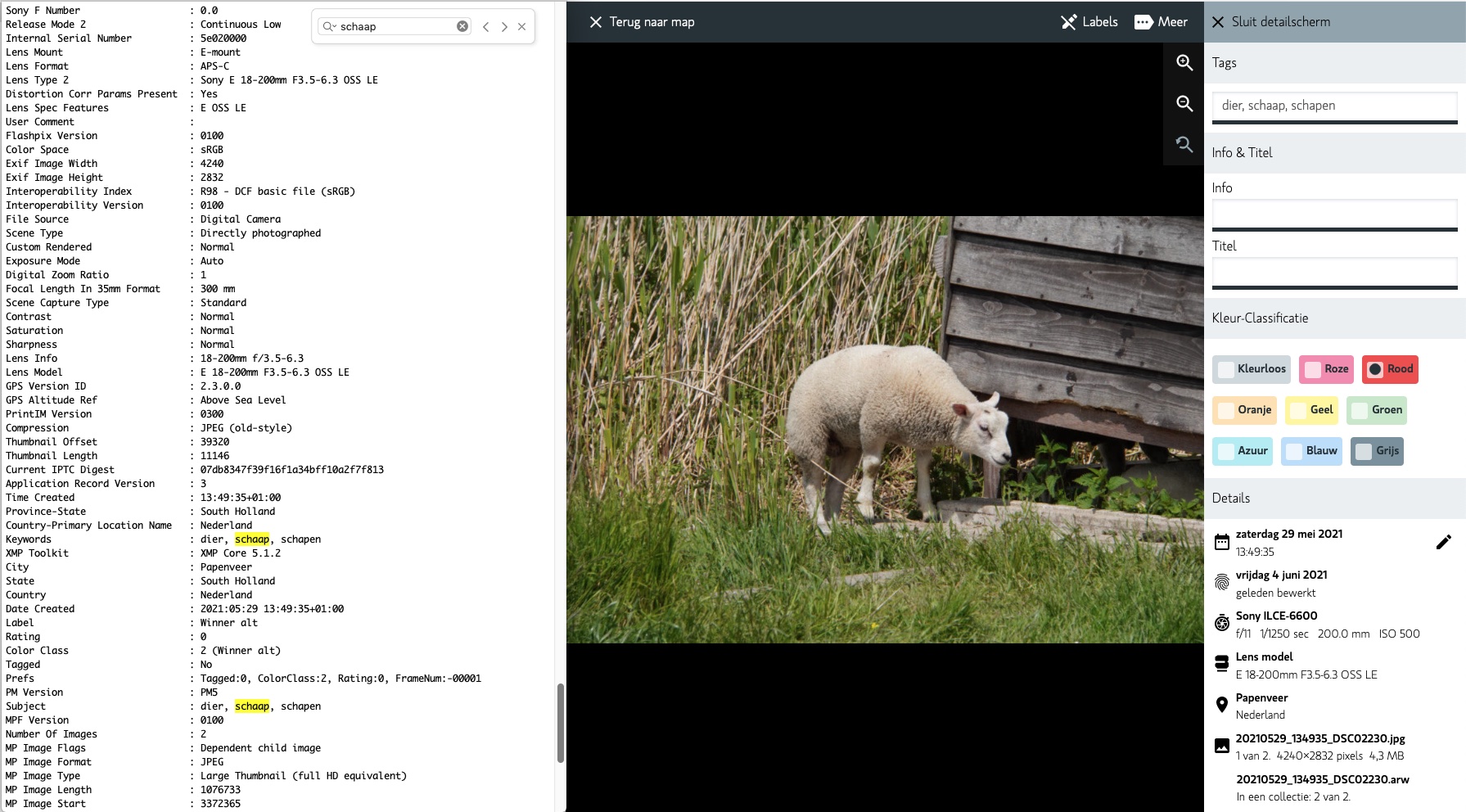 Left Exiftool viewing image and right Starsky with the same info
Which metadata is supported
Starsky uses IPTC or XMP metadata to read and write.
- Keywords / Tags
- where to find the image - used by the search engine to find the image
- Description
- what is the image about
- Title
- what is the image about
- ColorClass
- Rating and option to sort images very fast
- GPS Latitude and Longitude
- where is the image taken
- GPS Altitude
- how high is the image taken
- City
- Which city is the image taken
- Country
- Which country is the image taken
- CountryCode
- ISO 3166-1 alpha-2 country code of the country the image is taken
- State
- Which state or province is the image taken
- Software
- Which software is used to create the image
- Image Height
- The height of the image
- Image Width
- The width of the image
- Orientation
- The orientation of the image
- DateTime
- The date and time the original image was taken
- ISO speed
- The ISO speed of the image
- Aperture
- The aperture of the image
- Shutter speed
- The shutter speed of the image
- Focal length
- The focal length of the image
- Make
- The make brand of the camera
- Model
- The model of the camera
- Lens
- The lens of the camera
- Image Stabilization
- If the image is stabilized (only for Sony cameras)
- Artist
- The artist of the image
- Suggested Tags (Custom namespaced tag)
- AI generated tags suggested to the user based on image content
- Rejected Tags (Custom namespaced tag)
- AI generated tags that are rejected by the user
- Image Classification Model (Custom namespaced tag)
- Name and version of the AI model that generated the suggested tags
- Image Classification Generated At (Custom namespaced tag)
- Date and time when the AI metadata was generated
Tag Autocomplete
The Tag Autocomplete feature in Starsky makes it easier and faster to add tags (keywords) to your images. As you start typing a tag, Starsky will automatically suggest existing tags based on your previous entries. This helps you maintain consistency in your tagging, avoid typos, and quickly reuse tags you have used before.
- How it works:
- When editing tags, a dropdown appears with suggestions as you type.
- Suggestions are based on tags already present in your photo collection.
- You can select a suggested tag or continue typing to add a new one.
- Benefits:
- Speeds up the tagging process.
- Reduces duplicate or misspelled tags.
- Helps organize your photo library more efficiently.
Tag Autocomplete is especially useful for large collections where consistent tagging is important for search and organization.