Getting Started with ClientApp
Location
The ClientApp is located relative to the repository root (where history.md and LICENCE are located):
starsky/starsky/clientapp
Prerequisites
Node.js version
The required Node.js version is defined in the .nvmrc file.
Make sure you are using the correct version by running:
nvm use
If you don’t have Node Version Manager (NVM) installed yet, install it first.
Setup
Navigate to the ClientApp folder
cd starsky/starsky/clientapp
Install dependencies
npm ci
Start the development server
npm run start
This will start the Vite dev server and open the application at:
http://localhost:3000
⚠️ Important:
The backend server must be running on http://localhost:4000 for the client app to function correctly.
Running the backend
From the repository root, run:
cd starsky/starsky
dotnet run
When the backend is running successfully, you should see output similar to:
Now listening on: http://localhost:4000
VS Code setup
Auto formatting needs te be enabled:
This project uses prettier rules to check if the formating is done correctly, check this with (relative to the repository root):
cd starsky/starsky/clientapp
npm run format
Recommended extensions
This project includes a list of recommended VS Code extensions. You can find them here:
starsky/starsky/clientapp/.vscode/extensions.json
VS Code will prompt you to install these when opening the project.
Debugging
You can debug the ClientApp directly in VS Code.
Open the workspace
Make sure you open the provided workspace file (relative to the repository root):
starsky/starsky/clientapp/clientapp.code-workspace
Start debugging
-
Ensure the following are running:
- Backend server (
dotnet run) - Vite dev server (
npm run start)
- Backend server (
-
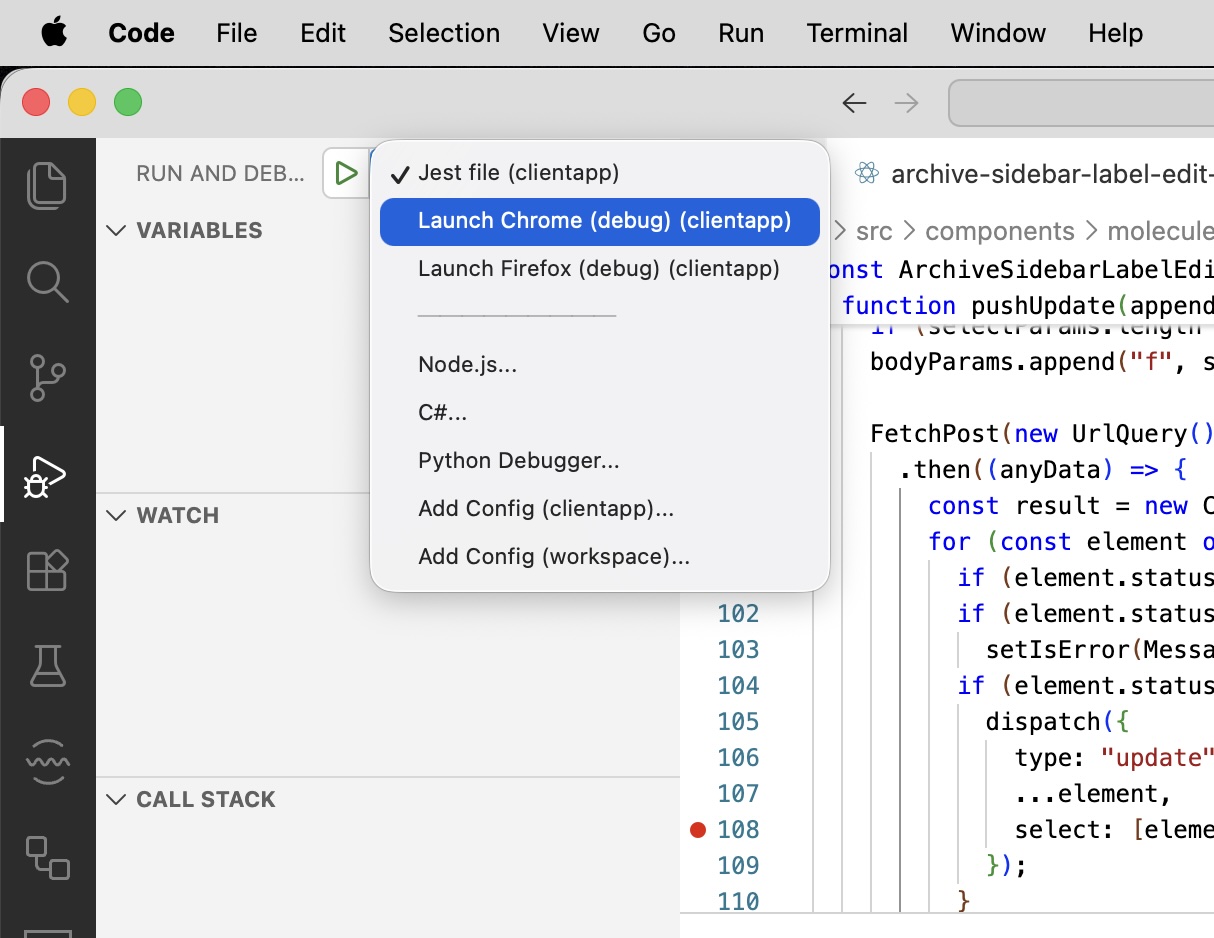
Open the Run and Debug panel in VS Code (play icon on the left).
-
Start the debug configuration for the client app.
-
Click on Launch Chrome or Firefox
You should now be able to debug the application client-side using breakpoints in VS Code.
Here’s the section added, aligned with the tone and structure of the rest of the document. You can paste it under Debugging or right before it (both make sense).
Testing
Run unit test suite
To verify that everything is still working correctly, you can run the unit test suite using one of the following commands.
Run all tests once (CI mode)
npm run test:ci
This runs the full test suite a single time and is suitable for CI pipelines.
Watch for changes during development
npm run test
This starts the test runner in watch mode and will re-run relevant tests when files change.